
Map, Blooms and teleporting: finding your way in Aniimo
Activate every Transporter you pass: its icon turns from gray to blue and it becomes a teleport destination. Outposts, Branches, Blooms and Sanctums all count. Then select a destination and track it — the map picks the nearest available Transporter and the best route for you.
On this page
Aniimo’s map does three jobs: showing where you are, teleporting you, and helping you plan catching runs. This guide sums up the official rules from the in-game help center and the map tutorials, with nothing added.
What the map shows
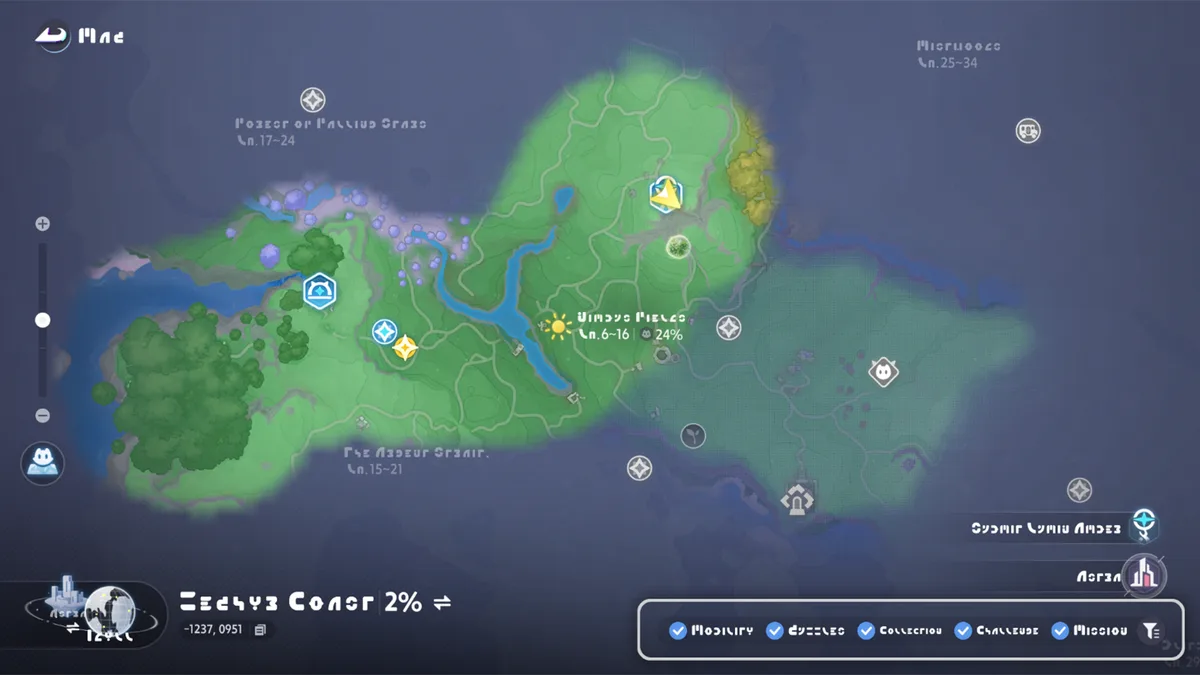
- Your current position.
- Locations, each with its own icon type.
- Your custom markers, which you can place anywhere.
- Filters to show or hide each marker type.
To zoom, drag the slider at the side of the map. On a controller, use the left and right triggers.
Aniimo Distribution and weather
Press Aniimo Distribution in the lower-left corner of the map, or zoom all the way out. The map then shows each region’s Aniimo collection progress and its weather conditions. Check it before you pick a hunting spot.
An area’s collection progress also drives its badges: at 40% you earn the area’s Bronze Collection Badge, which unlocks Nurture. See the prismatic energy and weather guide for what that does.
Direction indicator and tracking
When you track a target, an on-screen direction indicator gives its direction and distance in real time. You track one target at a time: tracking another one cancels the current tracking.
For quests, Track shows the route to the objective:
| Platform | Show the route |
|---|---|
| PC | V key |
| Controller | press the left stick |
| Mobile | Track button |
Teleporting
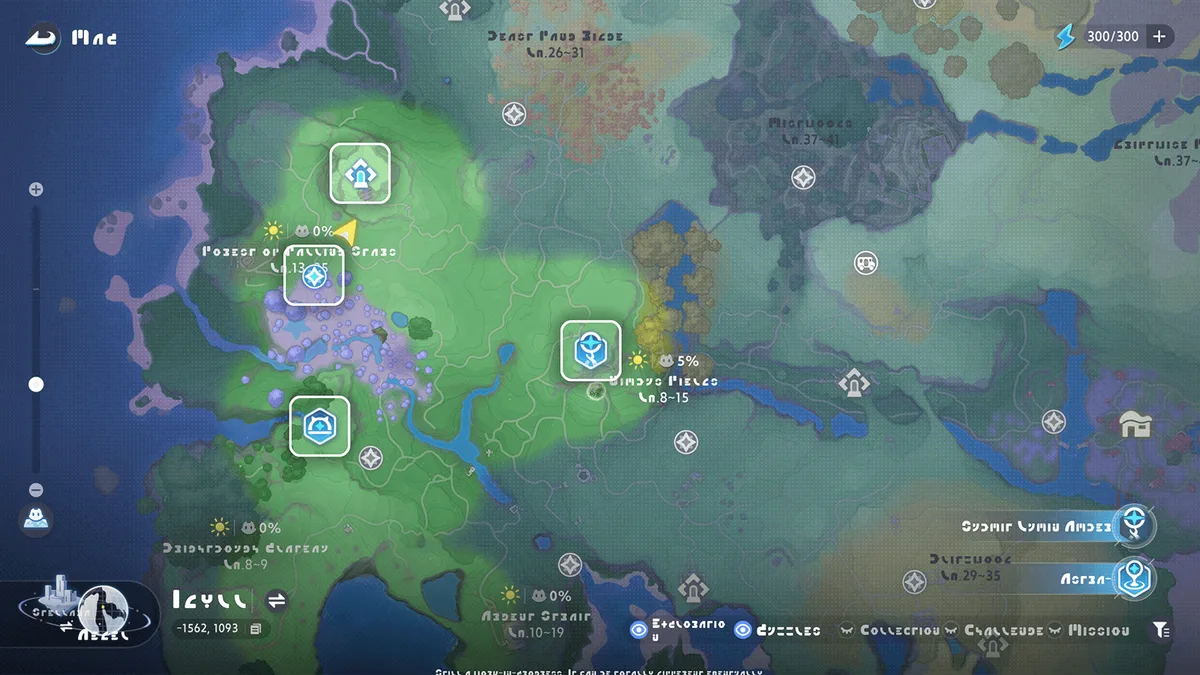
Teleporting is the fastest way to get around. Select a teleport icon on the map and your character appears there.
Activating a Transporter
A Transporter has to be activated before you can use it:
- Walk up to the teleport point.
- Interact with it.
- On the map, its icon turns from gray to blue: it’s ready.
Teleport icons are usually blue. The help lists four kinds of places:
- Outposts;
- Branches;
- Blooms;
- Sanctums.
Let the map plan the trip
You don’t need to hunt for the closest Transporter yourself. Select your destination and track it: the map automatically finds an available Transporter nearby and suggests the best route.
If you’re somewhere other than Idyll, the map lets you switch to the Idyll Map and pick any Transporter to head back. On a controller, that’s the left D-pad button.
Branches
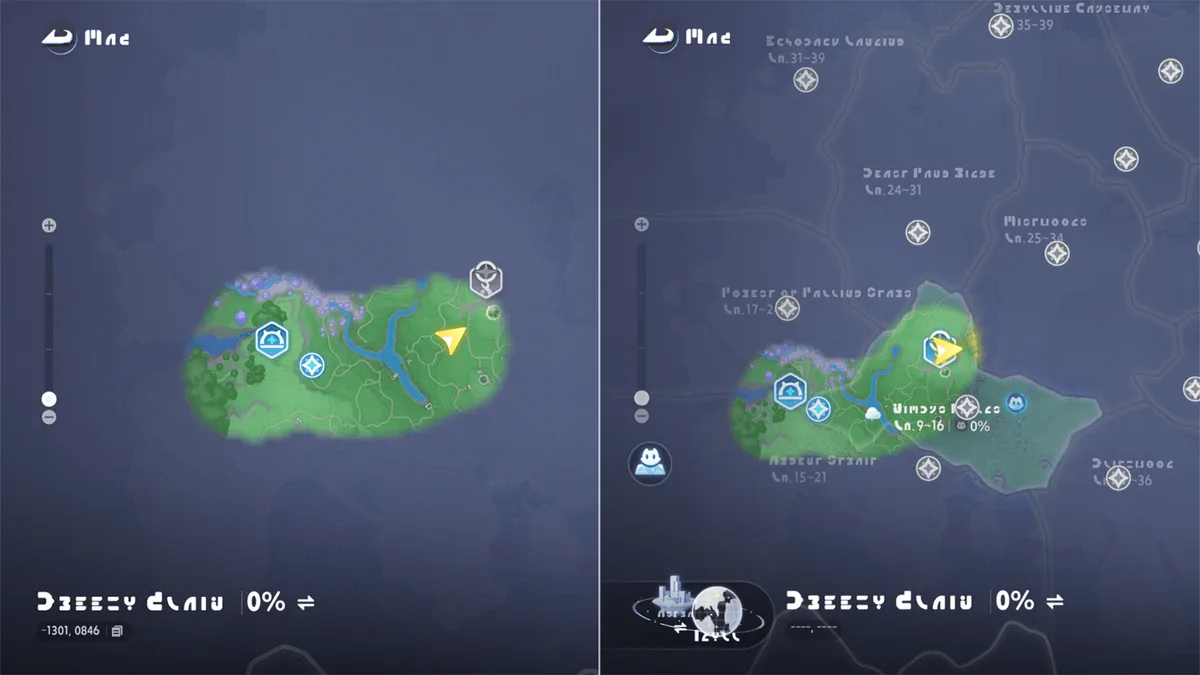
Branches are a core part of the map system. Activating one does two things right away:
- it reveals the Blooms across a large area;
- it unlocks a new map layer where you can view area info.
Once activated, a Branch can also be infused with Lumin Amber. Each level adds a bonus: catch chance, Nurture count, weather changes, Sparkling rate and more. The full level list is in the prismatic energy and weather guide.
Blooms
Blooms are unusual flowers found across Idyll. Interact with a Bloom to activate it. You can then use it to:
- view regional information;
- teleport quickly to that area.
Later on, Blooms are also the heart of Nurture: you bring them to the budding stage to draw in large groups of Aniimo. That requires the area’s Bronze Collection Badge. Everything is covered in prismatic energy and weather.
Sanctum entrances
A Sanctum entrance takes two separate interactions:
- The first activates the entrance and unlocks Teleport to that Sanctum on the map.
- The next one takes you inside the Sanctum.
So activating an entrance isn’t the same as clearing the Sanctum. You can tag it on the way and come back later by teleport. How Sanctums work (Aniimo statues, the Tesseract, Lumin Amber) is covered in exploring Idyll.
A simple travel routine
- Activate everything gray along your path: Transporters, Blooms, Branches, Sanctum entrances.
- Activate each Branch as soon as you can: it reveals the area’s Blooms in one go.
- Place custom markers on anything you want to revisit, then hide the categories you don’t need.
- Check Aniimo Distribution before a catching session.
- Select and track your destination instead of looking for a Transporter by hand.
aniimo.guide’s maps
Open the Idyll interactive map
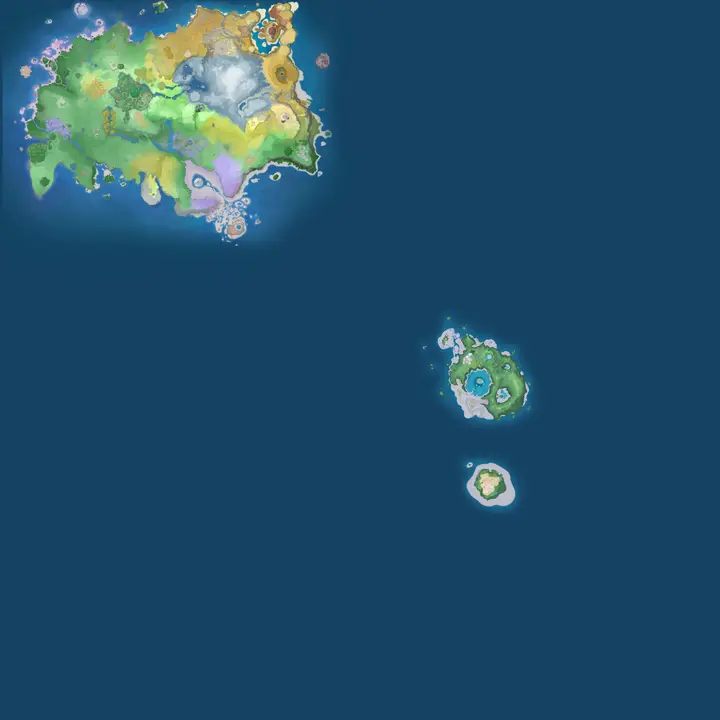
The site’s interactive map places markers taken from the game files: chests, Aniimo, places, NPCs and more. You can search by name, filter by region, time of day, element and species, and tick off what you’ve found. It doesn’t follow your in-game position.
The client’s raw map files (Idyll, the Ark and Egg Heist) are still available in the atlas. An area drawn on a map file isn’t proof that it’s open in game.
To see which Aniimo live where, also check the region pages.
Frequently asked questions
How do I activate a teleport point?
Walk up to the Transporter and interact with it. Its map icon turns from gray to blue, which means you can now teleport there.
Which places can I teleport to?
Teleport icons are usually blue. The in-game help lists Outposts, Branches, Blooms and Sanctums.
Where can I see a region’s collection progress?
On the map, press Aniimo Distribution in the lower-left corner, or zoom all the way out. The map then shows each region’s Aniimo collection progress and its weather.
I’m stuck in the scenery. What now?
When you can’t move, BINI #9 offers to send you back to the nearest activated Transporter. Accept and you’ll be teleported out.
Does the site’s map show chests?
Yes. The site’s interactive map places markers taken from the game files (chests, Aniimo, places, NPCs…), with filters by region, time of day, element and species. It doesn’t follow your in-game position.